Note: SpicyChat AI is an adult platform for users 18 and older. Download only from official sources listed here.
Spicy Chat AI App: How to Download on Android, iOS & Web (2026)
If you've been using SpicyChat AI in a browser and wondering whether a dedicated app exists — yes, it does. Both Android and iOS versions launched in late 2024 and have been updated regularly since. The current versions are Android 1.0.79 and iOS 1.0.72 (updated February 2026). Here's everything you need to know about getting them installed, plus alternatives if you'd rather not install a native app.
Is There a SpicyChat AI App?
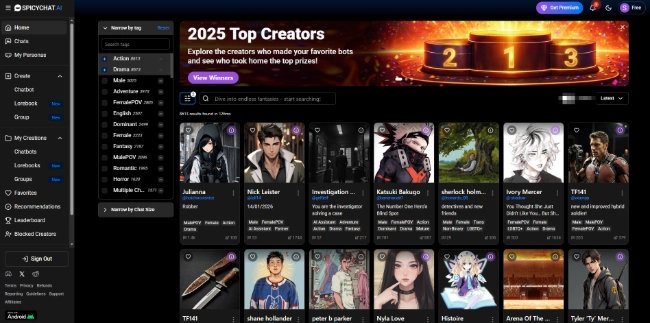
SpicyChat AI is available as a native app on both major mobile platforms, plus the full web platform at spicychat.ai. For a long stretch after the platform launched in 2023, it was web-only — which pushed many users toward bookmark shortcuts and PWA installs. Native apps exist now, and they're the smoothest way to access the platform on mobile.
The Android app was published to Google Play under the package name ai.nextday.mobile.android.spicychat by NextDay AI Incorporated, the Montreal-based company that operates the platform. The iOS version is listed in the App Store under "SpicyChat AI: Roleplay Chat."
How to Download SpicyChat AI on Android
Follow these steps to install the official Android app:
- Open the Google Play Store on your Android device
- Tap the search bar and type SpicyChat AI
- Locate the app published by NextDay AI — package name: ai.nextday.mobile.android.spicychat
- Confirm your device meets the requirement: Android 7.0 or higher
- Tap Install and wait for the download to complete
- Open the app, create an account or log in, and complete age verification if prompted in your region
Current version: 1.0.79
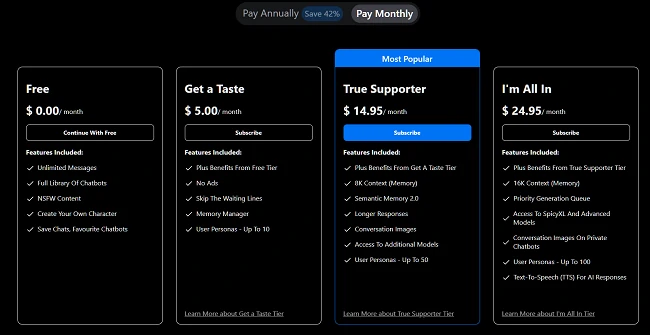
In-app purchase pricing: The Android app offers Spicy Chat Pro Weekly at $9.99 and Spicy Chat Pro Yearly at $29.99 — both processed through Google Play billing. The yearly $29.99 option is significantly cheaper than the equivalent monthly web pricing ($14.95 x 12 = $179.40/year), so if you're going premium, the in-app annual plan is the better deal.
How to Download SpicyChat AI on iOS
- Open the App Store on your iPhone or iPad
- Search for SpicyChat AI: Roleplay Chat
- Find the app published by NextDay AI
- Tap Get to download (no upfront cost)
- Authenticate with Face ID, Touch ID, or your Apple password
- Sign in or create your account; complete age verification if required in your region
Current version: 1.0.72 (updated February 2026)
In-app pricing follows the same structure as Android: $9.99/week or $29.99/year through Apple's App Store billing. The same math applies — the annual plan is by far the better value if you intend to stay subscribed long-term.
Device requirements: Compatible with iPhone and iPad running iOS 15 or later. Performance is smooth on any iPhone from the last four or five years.
Using SpicyChat AI on Web (Browser)
The web version at spicychat.ai is fully functional and doesn't require any installation. For desktop users, it's the primary recommended access method — the full interface, all features, and the widest screen real estate for the conversation view.
On mobile browsers, the web version is responsive and usable, though the native apps have better performance for ongoing use. If you want an app-like experience without installing the native app, you can add spicychat.ai to your home screen:
- On iOS Safari: Tap the Share icon → "Add to Home Screen"
- On Android Chrome: Tap the three-dot menu → "Add to Home Screen" or "Install App"
This creates a PWA (Progressive Web App) shortcut that opens the site in a dedicated window without browser chrome, behaving much like a native app. It won't have push notifications, but it's a clean alternative to installing the full native app.
Ready to explore? SpicyChat AI offers free access to 138K+ characters.
Start Chatting Free →SpicyChat AI on now.gg
now.gg is a cloud gaming and app streaming platform that lets you run Android apps in your browser without installing them on your device. SpicyChat AI is accessible through now.gg, which means you can use it on any device with a web browser — including computers that can't install Android apps natively, or devices where you'd rather not store the app.
How to access: Visit now.gg, search for SpicyChat AI, and launch it in your browser window. Your account syncs with the main platform.
Pros vs native app:
- No installation required on your device
- Works on any browser-capable device
- Useful on shared or restricted devices
Cons vs native app:
- Higher latency (the app runs on remote servers)
- No offline access
- Session performance depends on your internet connection
For most daily users, the native app or web version is the better choice. now.gg is most useful as a workaround when installation isn't practical.
SpicyChat AI Mod APK — Warning
Search "SpicyChat AI mod APK" and you'll find sites claiming to offer modified versions with premium features unlocked for free. Don't install them.
Mod APKs for AI chatbot platforms distribute primarily to steal account credentials, inject malware, or harvest device data. The "premium unlock" these files promise doesn't exist — SpicyChat's premium features require active server-side authentication. A modified APK can't grant premium access; it can only run malicious code on your device.
Specific risks of mod APKs:
- Malware infection — the modified file often contains code that runs in the background after installation
- Account credential theft — fake login screens capture your username and password
- Google Play ban — if Google detects a modded app on your device, your Play account can be flagged
- Data exposure — your SpicyChat conversations, device info, and other data can be sent to unknown servers
The legitimate free tier of SpicyChat AI offers unlimited messages at no cost. If the free experience isn't enough, the $29.99/year in-app option is the cheapest legitimate path to premium access.
App Features vs Web Experience
| Feature | Native App | Web Browser |
|---|---|---|
| Push notifications | Yes | No |
| Home screen access | Yes (icon) | PWA shortcut only |
| Performance | Optimized | Good (depends on browser) |
| In-app purchases | Yes (Play/App Store billing) | Web billing only |
| Offline access | Partial (cached content) | No |
| Screen size optimization | Excellent | Good (responsive) |
| Feature parity | Full | Full |
| Update delivery | Automatic (Play/App Store) | Always current |
| Storage required | ~100MB | None |
Feature parity is complete — everything available on web is available in the app and vice versa. The primary advantages of the native app are push notifications, better performance on weaker devices, and the in-app annual purchase option.
Why Is SpicyChat AI Not on the App Store?
If you searched this question, you may have encountered old information. SpicyChat AI IS now listed in both the Google Play Store and Apple App Store. Historically, the platform was web-only for about the first 18 months after launch, and several searches still return old forum posts or articles claiming there's no app.
App stores have strict content policies around adult material, which is why platforms like SpicyChat often take longer to appear in app stores than on the web. The available apps are content-moderated versions that comply with app store policies — some features may be surfaced differently in the app compared to the web version, but the core functionality is present.
Ready to explore? SpicyChat AI offers free access to 138K+ characters.
Start Chatting Free →Troubleshooting SpicyChat AI App Issues
App not loading or very slow to start: Check your internet connection first. SpicyChat requires an active connection for all functionality — there's no meaningful offline mode. If connection is fine, try closing and reopening the app. Clearing the app cache in your device settings (Settings → Apps → SpicyChat → Storage → Clear Cache) resolves most loading issues.
Login not working: If your credentials are correct but login fails, try the "Forgot Password" flow to reset your password. If you created your account with a social login (Google/Apple), ensure that account is still linked. Known issue: simultaneous logins from multiple devices can sometimes trigger a session conflict requiring you to log out of all devices and log back in.
App crashing on startup: This typically means the app needs an update. Check Google Play or the App Store for pending updates. If you're already on the latest version and crashes persist, uninstalling and reinstalling resolves most persistent crash issues.
Messages not sending: Check for any SpicyChat status announcements on their Discord or X/Twitter (@SpicyChatAI). Message delivery failures during normal conditions are usually server-side and temporary. If the issue persists longer than 30 minutes with no status announcement, contact support through the in-app help option.
For ongoing technical issues, the SpicyChat troubleshooting guide covers more scenarios in detail.
FAQ
Yes — downloading and using the SpicyChat AI app is free. The app provides the same free tier as the web version: unlimited messages, access to the full character library, 3 personas, 4K token context, with ads and waiting queues. Premium features require a paid subscription. The best-value paid option available through the app is the $29.99/year in-app purchase, which is significantly cheaper than the equivalent monthly pricing on the web.
Yes — the SpicyChat AI app and website have full feature parity. Your account, characters, conversation history, and settings sync across both. The only differences are interface-level: the app has push notifications and works better on low-end mobile hardware; the web version is better for desktop use and doesn't require installation.
Yes, automatically. Your SpicyChat account is tied to your login credentials, not your device. Log in on any device — Android, iOS, or any browser — and you'll see the same characters, conversation history, and account settings. There's no manual sync step required.
The most common cause is an outdated app version. Check your app store for updates. If you're already on the latest version, clear the app cache (device settings → Apps → SpicyChat → Storage → Clear Cache) and restart. If crashes continue, an uninstall and reinstall usually resolves persistent issues. Rarely, crashes are caused by server-side issues that resolve on their own within a few hours.
No dedicated desktop application exists. The web version at spicychat.ai is the desktop experience, and it works well in any modern browser. If you want an app-like experience on desktop, you can install it as a PWA through Chrome or Edge (look for the install icon in the browser address bar when visiting spicychat.ai). This creates a standalone window without browser chrome, similar to a native app.